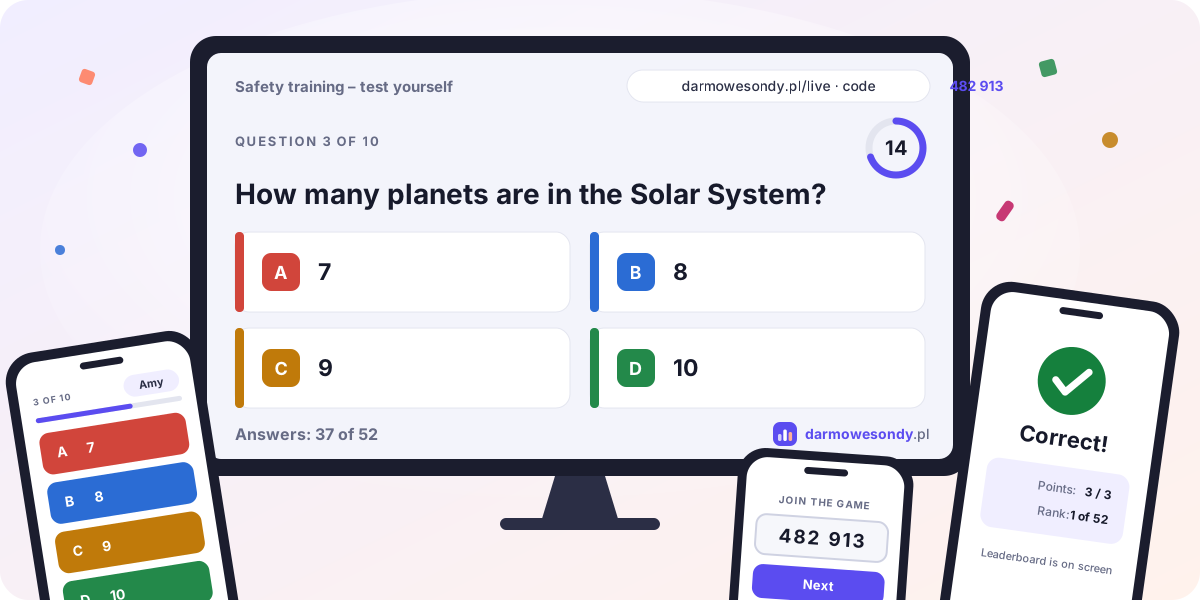
Show the questions on a projector or TV and let everyone answer on their own phone. There is no app to install and no account to create: participants open the join page, type the 6-digit code from the screen and choose a nickname. A live quiz works well for training sessions, classroom lessons, conferences, team meetings and events.
How does a live quiz work?

- Write your questions. After logging in, choose “Live” in the menu and create a quiz or a poll. Add questions with 2–6 answers; in a quiz, mark the correct ones and set a time limit. In the Design tab you can add your logo and colors.
- Open the screen. In the Run tab, copy the screen link and open it on the computer connected to the projector. Click “Start session” – the screen shows the join address, a 6-digit code and a QR code.
- Let participants join. They open the join page on their phones and enter the code and a nickname, or scan the QR code. You can see who is in on the screen.
- Run the game. Start when everyone has joined. Move through the questions, results and leaderboard from the remote on your phone, the keyboard or a presentation clicker.
- Download the results. Every session has its own results page in your panel and a CSV file with each participant’s answers.
Live quiz or live poll: which one do you need?

A live quiz tests knowledge. Questions have a correct answer and, normally, a time limit. When the time is up, the screen shows how people answered, reveals the correct answer and lists the nicknames of the fastest people who got it right (you can switch this off), then updates the leaderboard. At the end, the top three stand on the podium.
A live poll gathers opinions from the room. There are no correct answers and, by default, no time limit. The screen shows how many people have voted, and you reveal the results with one click. A poll can also be anonymous: participants join without choosing a nickname.
Inside a quiz you can also add a question with no correct answer, for example a rating of the session at the end. It works like a poll and awards no points.
How do you control the session during a presentation?

- Phone remote – scan the QR code in the Run tab. You get big buttons for start, show results, next question and +10 seconds, a preview of the next question with its correct answer, and the list of participants.
- Keyboard – when you are logged in on the computer that shows the screen, Space, the right arrow, Page Down or Enter move on, “+” adds 10 seconds and “F” switches to full screen. A regular presentation clicker works too.
- Screen without logging in – you can open the screen link on the computer in the room without signing in to your own account. You then control the session from your phone.
How does scoring work?

Each correct answer is worth 1 point. If two people have the same score, the one who answered faster ranks higher. Phones unlock the answer buttons 3 seconds after a question appears, so everyone has time to read it. A question closes when the time runs out, or earlier if all participants have answered.
Tips for a smooth session
- Keep questions and answers short – people read them from a projector and from a phone.
- Do a dry run: open the screen, join from your own phone and play through one question. You can delete the test session afterwards in the Results tab.
- Check that the room has mobile coverage or guest Wi-Fi.
- Do not show participants the screen link or the remote – the code is all they need to join. If a link does get out, generate new links in the Run tab.
- You can run the same quiz as many times as you like: every run gets a new code and its own results.
Live quiz FAQ
Do participants need an account or an app?
No. A browser on a phone, tablet or laptop and the code from the screen are enough.
How many people can join one session?
Up to 2,000 participants per session.
Does it cost anything?
No. Like everything else on DarmoweSondy.pl, live quizzes and polls are free to run, and the live screens and participants’ phones show no ads.
Where do I find the results?
Each session has its own page in the Results tab of your quiz, with the leaderboard, the distribution of answers and every person’s answers. The CSV file contains the place, nickname, points, chosen answers and answer times. If you need a classic questionnaire instead, see how surveys and polls work.
Privacy of participants
Participants do not create accounts. The host and the other participants can see a nickname, so ask people to use a pseudonym rather than their real name. The host can remove anyone with an inappropriate nickname from the session. We do not store participants’ IP addresses. Read more in the privacy policy.
Last updated: